
Death
-
Posts
16,337 -
Joined
Content Type
Profiles
Forums
Help
Issues
FAQ
Features
Gallery
Store
Events
Applications
Everything posted by Death
-
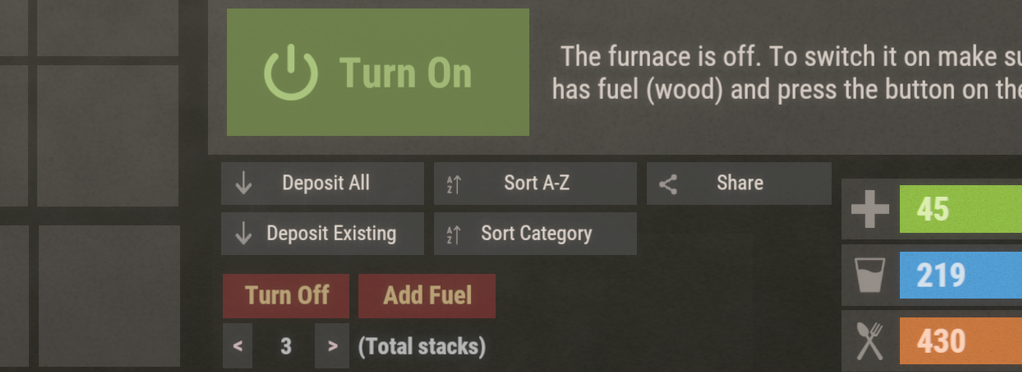 Furnace Sorter is available from the inventory of any oven you own. It automatically splits cookable materials, such as ore and crude oil, evenly across the selected number of slots. Use the arrows beside the stack count to increase or decrease how many slots the material is divided between. The sorter can be toggled on or off at any time. Enable Add Fuel to automatically add the correct amount of fuel needed to process the materials inside the oven. If the selected stack count exceeds the oven's available space, Furnace Sorter fills the remaining slots and stops to prevent items from being lost. Additional materials added later will continue to be divided evenly whenever space is available.
 -
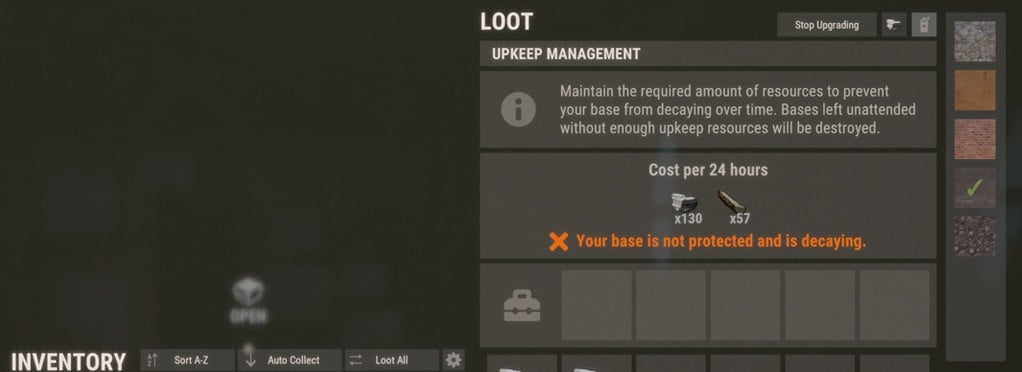 Interact with your Tool Cupboard to access Auto Upgrade controls. In the top-right corner, choose the building grade you want to use, then select a building skin if desired. Only skins you own will be available. Once your grade and skin are selected, choose Start Upgrading. Your base will upgrade gradually using resources stored in the Tool Cupboard and will stop when finished, cancelled, or when the required resources run out. Make sure your cupboard contains enough resources for both the upgrade and normal upkeep, as Auto Upgrade uses the same stored materials. Auto Upgrade can also apply a new skin to building parts that are already at the selected grade. Doing so costs the same resources normally required to upgrade those parts to that grade.
 -
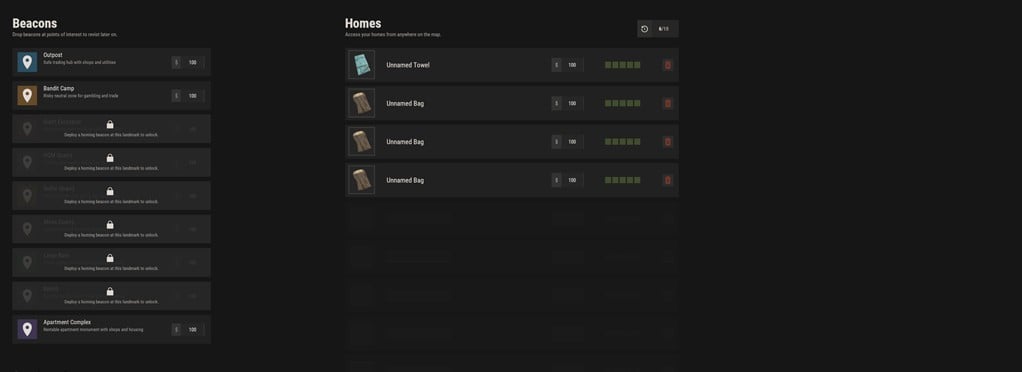 Place a bed or sleeping bag anywhere to create a home. Once you reach your home limit, additional beds and bags can still be used for respawning but will not be added as teleport locations. Use /home to open the Homes menu. You can also bind the command to a key through the console for quicker access. Your remaining home slots are shown in the top-left corner, while the teleport cost appears beside each home in the list. Teleporting costs credits, increasing by 50 after each use up to a maximum of 500. The cost resets every day at midnight EST. Removing a home from the menu does not remove the actual bed or sleeping bag. Beds and bags shared with you also appear in the menu and are marked SHARED. Your apartment room is added automatically as a destination. Beacons can be purchased from the Black Market and thrown at supported landmarks to unlock them as teleport locations. Beacon locations work like homes but do not use a home slot.
 -
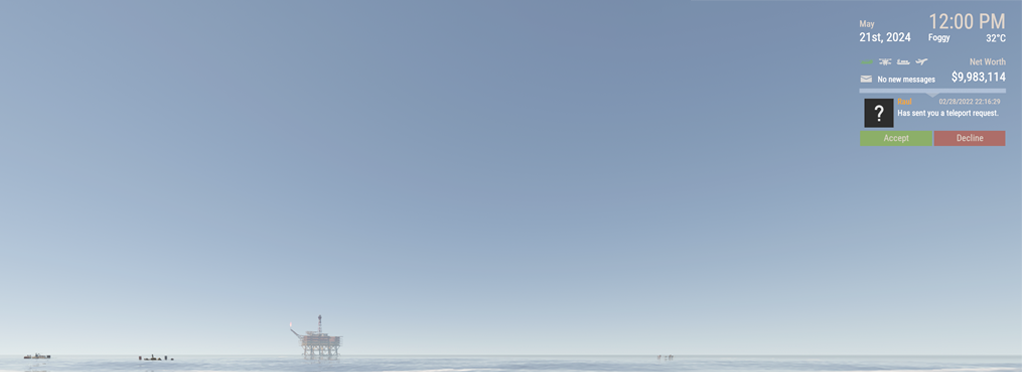 Teleporting allows you to quickly join friends anywhere on the island, provided neither player is in combat or otherwise busy. To send a request, type /tp username or /tp SteamID in chat. If the receiving player has their HUD enabled, an acceptance prompt will appear on screen. If their HUD is disabled, the request will appear in chat instead. Requests can be accepted through the prompt or by typing /tpa. Teleporting costs credits and becomes more expensive with repeated use. The cost caps at 500 credits and resets every day at midnight EST.
 -
That's the scam
-
Player called attack helicopter can be shot down before reaching its intended target
-
-
Changed Status to Closed
-
Changed Status to Closed
-
Changed Status to Working
-
Rust client logs can help staff review crashes, connection errors, loading issues, and other client-side problems. The main file to look for is: output_log.txt Open Steam. Go to your Library. Right-click Rust. Select Manage, then Browse local files. Look for output_log.txt in the Rust folder. You can usually find it here: Steam\steamapps\common\Rust\output_log.txt If staff asks for your client log, attach the output_log.txt file to your help ticket. Please do not copy and paste the entire log into the ticket unless staff asks you to. If you do not see the file, start Rust, try to reproduce the issue, then close Rust and check the folder again.
-
If Rust crashes while joining a server, it is usually caused by a bad cached map file or another client-side loading issue. Start by closing Rust completely and clearing your Rust map cache. Close Rust completely. Open your Rust install folder through Steam. Go to the maps folder. Delete the files inside the maps folder. Restart Rust and try joining the server again. You can usually find the folder here: Steam\steamapps\common\Rust\maps After clearing the folder, Rust will download a fresh copy of the map the next time you connect. If you are receiving a specific error instead of a normal crash, these articles may help: How do I fix the Invalid Packet: Client Ready error? How do I fix the World File Mismatch error? If Rust continues crashing after clearing your map folder, verify your Rust game files through Steam and try again. If the issue still continues, please create a help ticket and include the server you are trying to join, what happens when Rust crashes, and your Rust client log file. You can find instructions here: How do I find my Rust client log file?
-
Gee, I wonder why you possibly could have been demoted. Guess we'll never know
-
The Server Update Required error means Rust has received an update that the server has not finished applying yet. This usually happens when Facepunch releases a mandatory server update. These updates are required before players can connect again. RustEZ servers are updated promptly, so this error is usually temporary. In most cases, you only need to wait for the server update to finish, then try connecting again. Close Rust completely. Restart Steam and make sure Rust is fully updated. Wait a few minutes for the server update to complete. Try connecting again. If the error continues for an extended period, check RustEZ announcements or create a help ticket so staff can confirm the server status.
-
If you are unable to connect to a RustEZ server, the issue may be caused by Rust, Steam, your network, or cached connection data. Try the steps below before creating a help ticket. Close Rust completely and reopen it. Restart Steam. Restart your PC. Restart your modem and router. Make sure Rust is fully updated in Steam. Verify your Rust game files through Steam. Try connecting directly using the server IP. Server IPs can be found at rustez.com/connect. Temporarily disable any VPN, proxy, or custom DNS service and try again. Make sure Rust is allowed through your firewall and antivirus software. Flush your DNS cache. Restart your PC again after making network changes. If the issue continues, uninstall and reinstall Rust. To flush your DNS cache on Windows: Open the Start menu. Search for Command Prompt. Right-click it and choose Run as administrator. Run the following command: ipconfig /flushdns After flushing DNS, restart Steam and try connecting again. If you still cannot connect after trying these steps, please create a help ticket and include the server you are trying to join, any error message you are seeing, and what troubleshooting steps you already tried.
-
The World File Mismatch error usually means your Rust client has the wrong version of the map or a bad cached map file. To fix this, you will need to clear your Rust map cache. Close Rust completely. Open your Rust install folder through Steam. Go to the maps folder. Delete the files inside the maps folder. Restart Rust and try connecting to the server again. You can usually find the folder here: Steam\steamapps\common\Rust\maps After clearing the folder, Rust will download a fresh copy of the map the next time you connect. If the error continues after clearing your map folder, try verifying your Rust game files through Steam, then attempt to connect again.
-
The Invalid Packet: Client Ready error is usually caused by a Rust game bug where a sleeping bag or bed tied to your player becomes invalid. When this happens, the client can error while loading and prevent you from connecting to the server. This is not something you can usually fix on your own. Staff will need to resolve the issue for your player data so you can connect again. Create a new help ticket. Include the server you are trying to connect to. Mention that you are getting the Invalid Packet: Client Ready error. Once staff reviews the ticket, we can clear the issue causing the connection error and help get you back into the server.
-
RustEZ does not sell Steam items, Steam inventory items, skins, or anything that can be traded, listed, or used through Steam. Items sold through the RustEZ store are for use on RustEZ servers only. They are not added to your Steam inventory and cannot be used on other Rust servers. If you purchased an item by mistake because you thought it was a Steam item, please submit a help ticket so staff can review the purchase. Create a new help ticket. Include the item or items you purchased, or provide the invoice number. Let us know that the purchase was made by mistake because you thought it was a Steam item. Request a refund review. Refunds are reviewed by staff and are not guaranteed. Please do not purchase the same item again while waiting for your ticket to be reviewed.
-
Items other than memberships cannot be purchased or used on Pure servers due to community server guidelines. If you purchased an item for Pure that cannot be used there, please submit a help ticket so staff can review the purchase and help resolve it. Create a new help ticket. Include the item or items you purchased, or provide the invoice number. Let us know whether you would like the items transferred to another RustEZ server or if you would like to request a refund. Items are supported on all RustEZ servers other than Pure. Transfers can only be made to a server where the purchased item is supported. If a transfer is not possible, staff can review whether the purchase is eligible for a refund. Please do not purchase the same item again while waiting for your ticket to be reviewed.
-
If you were banned from the RustEZ Discord, you can appeal the ban by submitting a help ticket. Create a new help ticket. Include your Discord username and Discord user ID if you have it. Explain why you believe the ban should be reviewed. Submit the ticket and wait for staff to review it. Please include as much relevant information as possible, such as when the ban happened, what led up to it, and why you are requesting another chance. Do not create alternate Discord accounts to bypass the ban, and do not message staff privately about the appeal. Ban appeals must be handled through a help ticket so the team can review everything properly. Submitting an appeal does not guarantee the ban will be lifted. Staff will review the situation and respond through your ticket.
-
You can unlink your Steam or Discord account from your RustEZ account settings. If you originally registered using Steam or Discord, you must set a manual password on your RustEZ account before the site will allow you to unlink that login method. Sign in to your RustEZ account. Click your username in the top-right corner of the site. Select Account Settings. Go to the section for connected accounts, linked accounts, or social sign-ins. Find Steam or Discord and choose the option to unlink it. If you registered using Steam or Discord and have not set a manual password yet, you will need to do that first. Log out of your RustEZ account. Use the Forgot Password option on the login page. Enter the email address associated with your RustEZ account. Follow the password reset link sent to your email. After setting a password, log back into your account. Return to Account Settings and unlink Steam or Discord. If you do not know which email address is associated with your account, cannot access that email, or do not receive the password reset email, please create a help ticket. Staff can help send the password reset email or assist with the unlinking process.
-
You can update the email address on your RustEZ account from your account settings. Sign in to your RustEZ account. Click your username in the top-right corner of the site. Select Account Settings. Open the Email Address section. Enter your new email address. Enter your current password to confirm the change. Click Save. After saving, you may need to re-activate your account. Check the inbox for your new email address and follow the instructions in the confirmation email. If you do not receive the confirmation email, check your spam or junk folder first. Make sure the email address was entered correctly, then try again. Changing your email address does not create a new RustEZ account. Your account, purchases, linked services, and server access should remain attached to the same profile. If you cannot access your account or are unable to complete the email change, please contact RustEZ support for help.
-
Changed Status to Closed
-
Changed Status to Released
-
Changed Status to Released